

To style one bundle only, or to add your own HTML to it, use Custom code in that bundle’s editor. See Custom code for one bundle.
Accessing custom CSS settings
- Open the Product Bundles app
- Click Settings in the left navigation
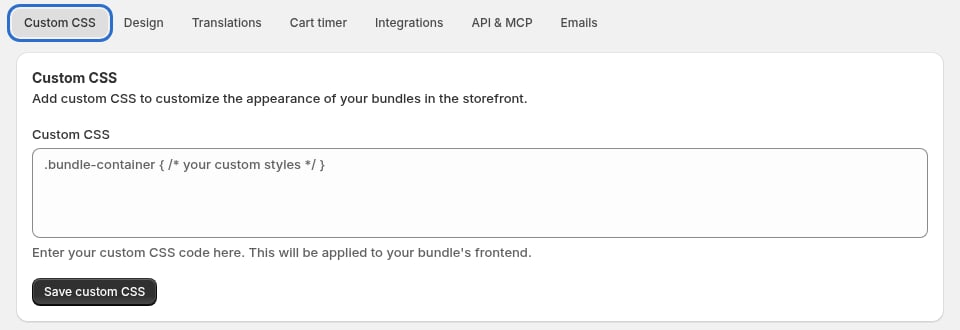
- Select the Custom CSS tab
CSS editor
Available CSS selectors
Target specific bundle elements using these classes. Widget classes start withtb- and the cart upsell uses cart-upsell- classes. Bundle types draw some elements with different classes, so each element lists every class that applies.
Widget container
Bundle title
Product list
Pricing
Button
Cart banner
Example customizations
Rounded modern style
Minimal clean design
Vibrant bold style
Animation and interactions
Mobile-optimized
Best practices
Start simple
Start simple
Begin with small changes and test before adding complex styles. Build up gradually.
Use specific selectors
Use specific selectors
Target bundle elements specifically (e.g.,
.tb-add-to-cart) rather than generic selectors that might affect your entire site.Test cross-browser
Test cross-browser
Check your custom CSS in Chrome, Safari, Firefox, and Edge. Some CSS properties behave differently across browsers.
Mobile first
Mobile first
Always include mobile-specific styles. More than 50% of shoppers use mobile devices.
Performance matters
Performance matters
Avoid complex animations or excessive CSS that could slow page load times.
Comment your code
Comment your code
Add comments to explain what each section does for easier future maintenance.
CSS tips and tricks
Use CSS variables for consistency
Improve accessibility
Smooth transitions
Saving and applying CSS
1
Write your CSS
Add your custom CSS in the editor
2
Preview (optional)
Use the preview feature to see changes before saving
3
Save
Click Save to apply your custom CSS
4
Test
Visit your store and check the widgets on product and cart pages
Custom code for one bundle
Each bundle can have its own CSS and HTML. They apply only to that bundle’s widget, so other bundles keep their look.- Open the bundle in the editor.
- Turn on Custom code.
- Add your styles under Custom CSS and your markup under Custom HTML.
- Check the result in the preview, then click Save.
<style> and <svg> elements, inline event handlers such as onclick, and links other than web, mailto: and tel: links are removed, so the HTML can’t run code or restyle the rest of the page. Put styles under Custom CSS instead.
Bundle CSS needs a browser that supports CSS
@scope (current Chrome, Edge, Safari and Firefox). Older browsers skip the bundle’s CSS and show the widget’s normal style.Troubleshooting
CSS not applying:- Check for syntax errors (missing semicolons, brackets, etc.)
- Verify class names are correct
- Clear browser cache and check in incognito mode
- Check browser console for CSS errors
- Your theme CSS might have higher specificity
- Try more specific selectors or use
!importantsparingly - Inspect elements with browser developer tools to see which styles apply
- Add
@mediaqueries for responsive design - Test on actual mobile devices
- Check for fixed widths that don’t scale
- Remove complex animations
- Optimize heavy styles
- Use simple CSS properties
Getting help with CSS
If you need help with custom CSS:- Browser DevTools: Use Chrome/Firefox DevTools to inspect elements and test styles live
- CSS documentation: Reference MDN Web Docs for CSS properties
- Support: Contact support@getappfox.com for assistance