

What is a Volume Discount?
A Volume Discount applies a percentage discount when customers buy a specific quantity of a single product. Use it to encourage bulk purchases. Example: “Buy 3 protein bars, get 20% off” or “Stock up: Buy 5, save 25%“When to use Volume Discounts
Volume Discounts work best for:- Consumables: Products customers use regularly and need to replenish
- Bulk purchases: Encouraging customers to stock up
- Reducing SKU complexity: Simplifying inventory by moving more of fewer products
- Subscription alternatives: One-time bulk discounts instead of recurring subscriptions
Creating a Volume Discount
1
Select bundle type
From the Bundles page, click Create a bundle and select Volume Discount.
2
Choose the product
Select one product that will have the volume discount applied.
3
Set quantity threshold
Enter the minimum quantity required (e.g., “Buy 3 or more”).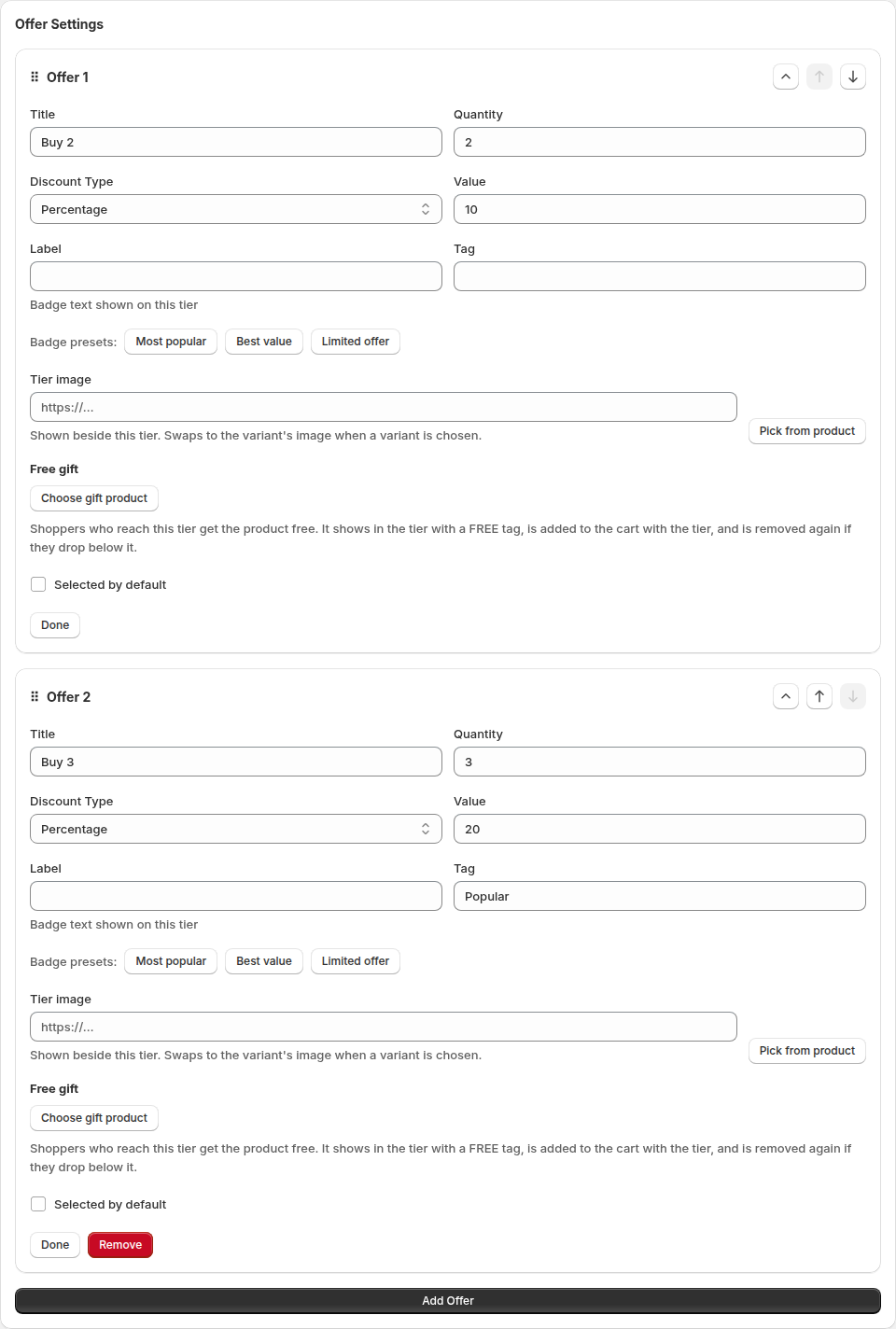
4
Set the discount
Enter a percentage discount that applies when the quantity threshold is met (e.g., 20%).
5
Name your offer
Use a name like “Stock Up & Save: 20% off when you buy 3+” or “Protein Bar Bulk Discount”.When you finish an offer, click the chevron in its header or Done to minimize it. A minimized offer shows its title and quantity; click the chevron again to reopen it. Minimizing only tidies the editor and doesn’t change the offer or what shoppers see.
6
Activate
Toggle to Active and click Save.
Bundle settings
Product selection
- Products: One product per volume discount
- Variants: Discount applies to all variants of the product
- Quantity threshold: Minimum quantity to qualify for discount
Discount
- Type: Percentage only
- Range: 1% to 99%
- Application: Applies when customer adds the threshold quantity or more to cart
How it appears on your store
Product page widget
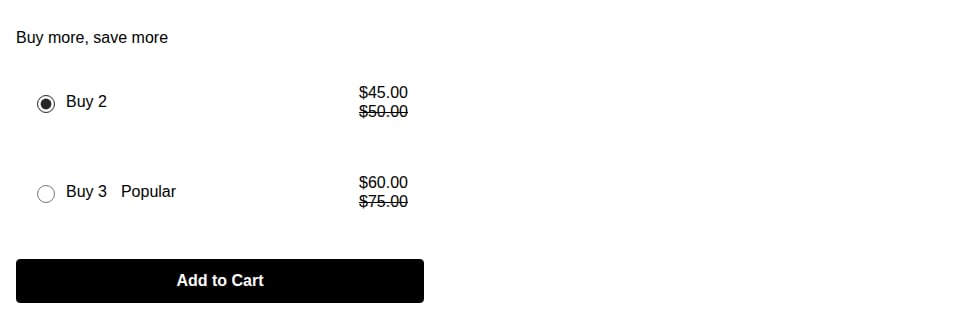
- “Buy X or more, save Y%”
- Product image and regular price
- Discounted price when threshold is met
- Quantity selector
- “Add to cart” button
Cart
When quantity threshold is met:- Line item shows quantity and discounted price per unit
- Discount line item with total savings
- Clear indication of volume discount applied
Choosing a variant for each unit
In the Volume editor, open Variants and turn on Allow variants selection. The help text explains that this shows a variant picker for each unit in the selected quantity-break tier. For example, with a “Buy 3” offer, shoppers choose a size and colour for each of the three items and add all three to the cart in one click.- Picker style: Pickers follow your Variant display (dropdown, buttons or swatches). Swatches fall back to buttons when the variants aren’t colours.
- Sold-out variants: Each unit starts on the variant currently selected on the page. If that variant is sold out, it starts on the first variant that’s in stock instead. Turn on Hide sold-out variants to remove sold-out variants from the pickers; otherwise they appear disabled.
- Single-variant products: Products with only one variant (after hiding sold-out ones) don’t show pickers.
- Higher quantities: If the shopper raises the quantity on the product page above the offer’s quantity, each extra unit gets its own picker too, up to 20 pickers. Units beyond that use the last picker’s variant.
Tiered discounts
While the app supports single-tier volume discounts, you can create multiple volume discount bundles for the same product with different thresholds:- Tier 1: Buy 2, save 10%
- Tier 2: Buy 5, save 20%
- Tier 3: Buy 10, save 30%
Free gift on a tier
Give shoppers a reason to pick a bigger tier besides the percentage: a free product, for example “Buy 3 + free travel mug”.- Open the Volume bundle and find the offer (tier) you want to reward.
- Under Free gift, click Choose gift product and pick the product. If it has variants, pick the variant you want to give away.
- Click Save.
- The tier shows the gift with its image and a FREE tag.
- When a shopper adds that tier to the cart, the gift is added with it and is free at checkout.
- If the shopper later removes products or lowers the quantity so the cart no longer reaches the tier, the gift is removed from the cart. This applies on product pages, the cart page and the cart drawer, as long as the Appfox app embed or block is enabled in your theme. The gift is only free while the tier is reached.
- If the gift is sold out or can’t be added, the products are still added to the cart without it.
The gift is a normal product in your catalog. Make sure it’s available on your Online Store sales channel, otherwise it can’t be added to the cart.
Show gifts in their own section
By default each gift appears inside its tier. To list the gifts in a separate section below the tiers instead:- Set a gift on at least one tier, as described above.
- In Progressive gifts, turn on Show gifts in their own section.
- Adjust the section:
- Gift section title and Gift section subtitle: your own wording. Leave them empty for the built-in text, which is translated for each language.
- Hide gifts until customers unlock them: shows a gift only once the selected tier gives it.
- Show labels for locked gifts: tells shoppers how many items unlock a gift.
- Show product image for locked gifts: shows the gift image before it’s unlocked.
- Gift layout: List, Grid or Compact.
Best practices
Start with modest thresholds
Start with modest thresholds
Don’t make the quantity threshold too high initially. “Buy 3” is more achievable than “Buy 10” for most customers. You can always increase it based on results.
Make the math easy
Make the math easy
Use round numbers and clear percentages. “Buy 5, save 20%” is easier to understand than “Buy 4, save 17%”.
Emphasize per-unit savings
Emphasize per-unit savings
Show both the percentage discount and the per-unit savings. “$10 → $8 each” is more tangible than just “20% off”.
Consider your margins
Consider your margins
Volume discounts should encourage larger purchases while preserving profitability. Calculate your break-even point before setting discount percentages.
Target consumables
Target consumables
Volume discounts work best for products customers buy regularly. One-time purchase products are less suitable.
Example volume discounts
Food & Beverage
Protein Bars: Buy 5 or more, save 20%. Regular $4.99 → $3.99 each
Beauty
Face Masks: Buy 10 or more, save 30%. Regular $3 → $2.10 each
Home
Scented Candles: Buy 3 or more, save 15%. Regular $20 → $17 each
Pet Supplies
Dog Treats: Buy 6 bags or more, save 25%. Regular $12 → $9 each
Pricing strategy
Calculate your volume discount using this approach:- Determine your margin: Know your cost and profit margin per unit
- Set the threshold: Choose a quantity that encourages bulk buying but is achievable
- Calculate discount: Ensure the discount is attractive while preserving acceptable margin
- Cost: $5, Regular price: $10 (50% margin)
- Volume threshold: Buy 5 or more
- Volume discount: 20% off ($8 per unit)
- New margin per unit: $3 (30%, lower but acceptable for higher volume)
Combining with other offers
Volume discounts can run alongside other bundle types:- Customer buys 5 units: Volume discount applies
- Customer buys 3 units in a Classic Bundle: Classic Bundle discount applies
- Shopify automatically applies the best discount available to the customer
Troubleshooting
Discount not applying:- Verify the customer added the required quantity to cart
- Check that all items are the same product (different variants of the same product qualify)
- If the widget shows on a collection, on all products or on several products, check Counting mode under Where to show this widget. With Per Product, a tier only applies when the cart has that many of one product, so a shopper who mixes products pays full price. Choose Combined if any mix of the targeted products should unlock a tier. The editor shows a warning when this applies.
- Ensure the bundle is active
- Edit the bundle and lower the quantity threshold
- Monitor analytics to see average quantity purchased
- Adjust based on customer behavior