

The old cart timer has been removed because Shopify doesn’t hold cart stock. Daily or repeating countdowns are no longer available. Every countdown now needs a real end date.
Add a countdown to a bundle
1. Open the bundle Go to Bundles and click the bundle. If Advanced settings is collapsed, click Show. 2. Set an end date In the Schedule card, set End date and time. You can also set a Start date and time if the offer shouldn’t start right away. Times use your store’s time zone.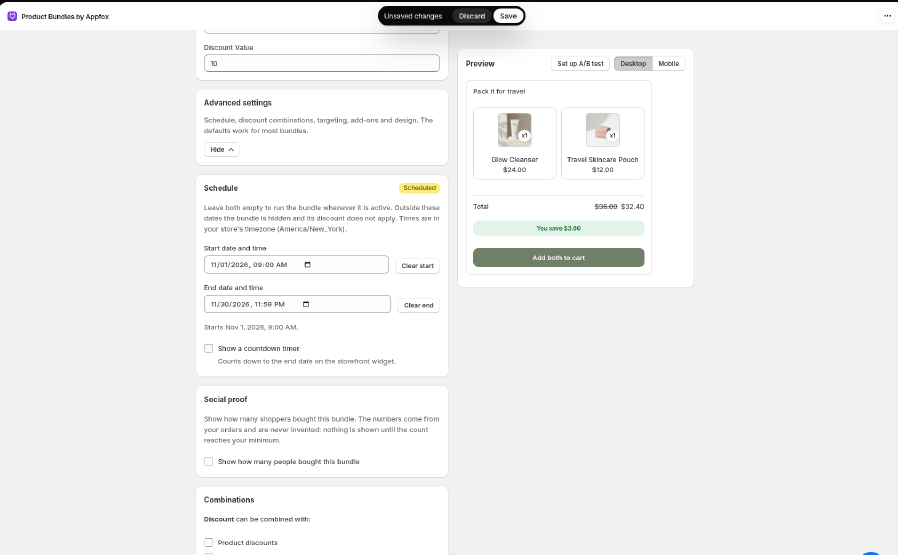
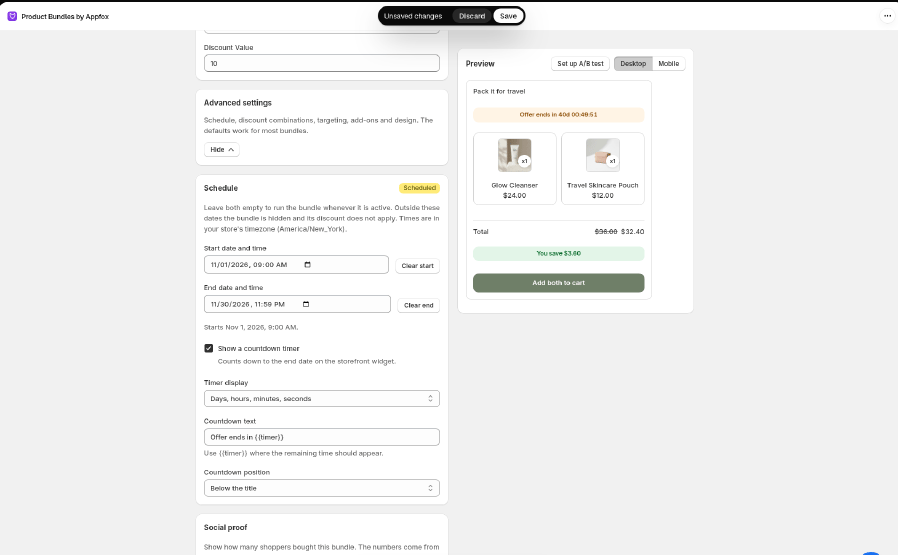
- Timer display: Days, hours, minutes, seconds, or Hours, minutes, seconds.
- Countdown text: what shoppers read. Put
{{timer}}where the time should go, for exampleOffer ends in {{timer}}. - Countdown position: Top of the widget, Below the title, or Bottom of the widget.
What happens when it ends
- The bundle shows Expired in the editor and disappears from your storefront.
- The discount stops applying, even for shoppers who already have the products in their cart.
- To run it again, set a new end date (or clear it) and save.
Good to know
- To translate the countdown text, go to Settings → Translations.
- The timer uses the widget’s colours and font from Settings → Design.
- If the timer doesn’t appear, check that the bundle has an end date in the future, that Show a countdown timer is on, and that you saved.