> ## Documentation Index
> Fetch the complete documentation index at: https://getappfox.com/subscription/docs/llms.txt
> Use this file to discover all available pages before exploring further.
# Subscriptions
> Search and edit Shopify subscription contracts in Appfox. Filter by status, change products, dates, or the address, then pause, resume, or cancel.
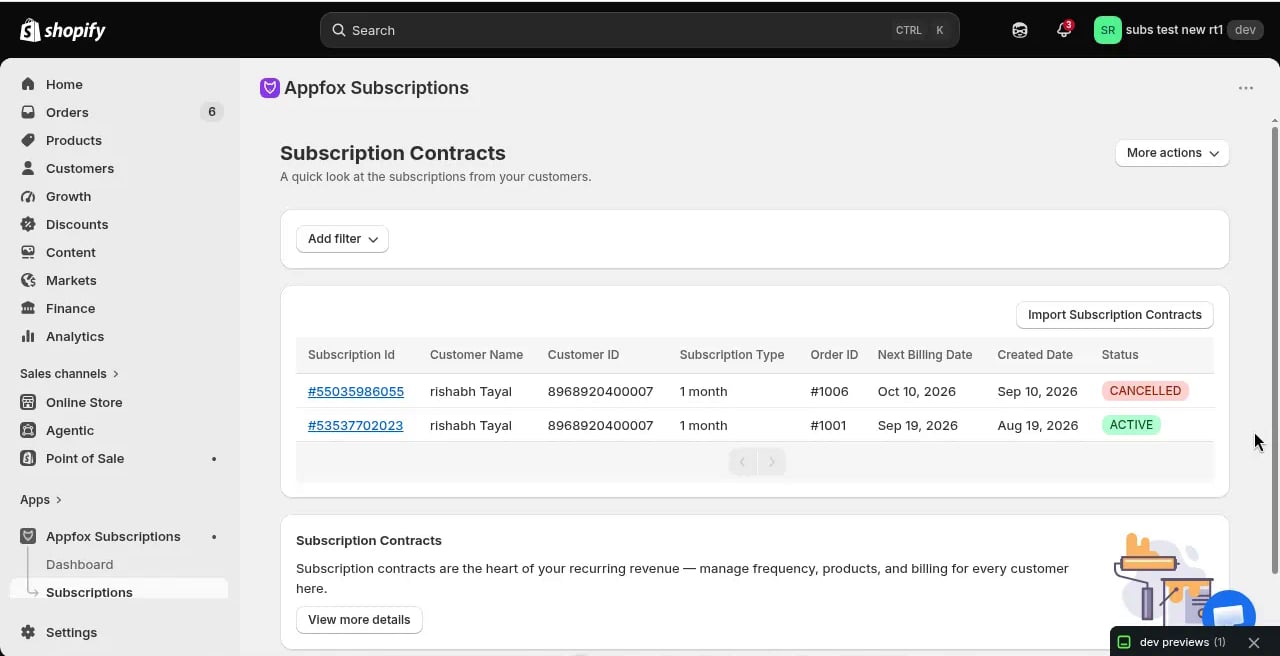
The **Subscriptions** page shows all subscription contracts in your store. Each contract represents one customer's recurring order for a product or set of products.
 ## View subscriptions
When customers place subscription orders, their contracts appear in the subscriptions list. You can filter and search to find specific subscriptions:
* **Status tabs** — switch between **All**, **Active**, **Paused**, **Cancelled**, and **Failed** subscriptions.
* **Search bar** — type a customer name, email, order ID, or subscription ID. Results update as you type.
* **Filters** — click **Filters** to narrow by frequency, customer ID, order ID, next billing date, or created date. Applied filters appear as removable chips; click **Clear all** to reset them.
The list shows:
* Customer name
* Products in the subscription
* Billing frequency
* Next billing date
* Subscription status (active, paused, or cancelled)
If you just installed the app, the subscriptions page will be empty until customers place their first subscription orders.
## Subscription details
Click any subscription to view the full contract details. From the detail page, you can:
* View the complete order history
* See upcoming billing dates
* Check the current products and quantities
* Review the customer's shipping address
* See the payment method on file
## Manage subscriptions
You can make changes to active subscriptions from the detail page.
### Edit products
Add, remove, or change the quantity of products in the subscription. Changes take effect on the next billing cycle.
### Update the billing date
Reschedule the next billing date to accommodate customer requests. Future billing dates shift based on the new schedule.
### Change the shipping address
Update the customer's shipping address for future orders.
### Pause a subscription
Temporarily pause billing and order fulfillment. The subscription remains in the system, but no charges or orders process until you resume it.
### Resume a subscription
Restart a paused subscription. The next billing date is set based on when you resume.
### Cancel a subscription
Permanently cancel the subscription. The customer receives no future orders or charges.
Customers can also pause, resume, and cancel subscriptions from the customer portal. Any changes they make appear on the subscription detail page.
## Create manual subscriptions
You can create subscriptions manually for customers who place orders over the phone or through other channels. Click **Import Existing Contracts** and then **Create manual subscription** to start.
[Learn more about creating manual subscriptions →](/subscription/docs/subscription/docs/create-manual-subscription)
## Failed payments
When a billing attempt fails, the subscription appears in the failed payments list. You can view failed billing attempts, check the failure reason, and retry billing once the customer updates their payment method.
Failed payments are tracked separately from active subscriptions so you can quickly identify and address billing issues. The app automatically sends dunning emails to remind customers to update their payment information.
[Learn more about managing failed payments →](/subscription/docs/subscription/docs/failed-payments)
## Export subscriptions
You can export your subscription contracts to a CSV file for backup or operational use.
To export:
1. Go to the **Subscriptions** page
2. Click the export action (if available in the UI)
3. The file downloads with the name `subscription-contracts-{your-shop}-{date}.csv`
The CSV includes subscription details such as customer information, products, billing frequency, next billing date, and contract status.
Use the CSV export for data analysis, reporting to stakeholders, or backup before making bulk changes to subscription plans.
## Related pages
* [Create manual subscriptions](/subscription/docs/subscription/docs/create-manual-subscription) — Manually create contracts for phone or in-person customers
* [Prepaid orders](/subscription/docs/subscription/docs/prepaid-orders) — View unfulfilled prepaid subscription orders
* [Failed payments](/subscription/docs/subscription/docs/failed-payments) — Manage failed billing attempts and dunning emails
The app does not support order skipping. If a customer wants to skip a billing cycle, pause the subscription and resume it after the cycle passes.
This documentation is built and hosted on [Mintlify](https://mintlify.com), a developer documentation platform.
## View subscriptions
When customers place subscription orders, their contracts appear in the subscriptions list. You can filter and search to find specific subscriptions:
* **Status tabs** — switch between **All**, **Active**, **Paused**, **Cancelled**, and **Failed** subscriptions.
* **Search bar** — type a customer name, email, order ID, or subscription ID. Results update as you type.
* **Filters** — click **Filters** to narrow by frequency, customer ID, order ID, next billing date, or created date. Applied filters appear as removable chips; click **Clear all** to reset them.
The list shows:
* Customer name
* Products in the subscription
* Billing frequency
* Next billing date
* Subscription status (active, paused, or cancelled)
If you just installed the app, the subscriptions page will be empty until customers place their first subscription orders.
## Subscription details
Click any subscription to view the full contract details. From the detail page, you can:
* View the complete order history
* See upcoming billing dates
* Check the current products and quantities
* Review the customer's shipping address
* See the payment method on file
## Manage subscriptions
You can make changes to active subscriptions from the detail page.
### Edit products
Add, remove, or change the quantity of products in the subscription. Changes take effect on the next billing cycle.
### Update the billing date
Reschedule the next billing date to accommodate customer requests. Future billing dates shift based on the new schedule.
### Change the shipping address
Update the customer's shipping address for future orders.
### Pause a subscription
Temporarily pause billing and order fulfillment. The subscription remains in the system, but no charges or orders process until you resume it.
### Resume a subscription
Restart a paused subscription. The next billing date is set based on when you resume.
### Cancel a subscription
Permanently cancel the subscription. The customer receives no future orders or charges.
Customers can also pause, resume, and cancel subscriptions from the customer portal. Any changes they make appear on the subscription detail page.
## Create manual subscriptions
You can create subscriptions manually for customers who place orders over the phone or through other channels. Click **Import Existing Contracts** and then **Create manual subscription** to start.
[Learn more about creating manual subscriptions →](/subscription/docs/subscription/docs/create-manual-subscription)
## Failed payments
When a billing attempt fails, the subscription appears in the failed payments list. You can view failed billing attempts, check the failure reason, and retry billing once the customer updates their payment method.
Failed payments are tracked separately from active subscriptions so you can quickly identify and address billing issues. The app automatically sends dunning emails to remind customers to update their payment information.
[Learn more about managing failed payments →](/subscription/docs/subscription/docs/failed-payments)
## Export subscriptions
You can export your subscription contracts to a CSV file for backup or operational use.
To export:
1. Go to the **Subscriptions** page
2. Click the export action (if available in the UI)
3. The file downloads with the name `subscription-contracts-{your-shop}-{date}.csv`
The CSV includes subscription details such as customer information, products, billing frequency, next billing date, and contract status.
Use the CSV export for data analysis, reporting to stakeholders, or backup before making bulk changes to subscription plans.
## Related pages
* [Create manual subscriptions](/subscription/docs/subscription/docs/create-manual-subscription) — Manually create contracts for phone or in-person customers
* [Prepaid orders](/subscription/docs/subscription/docs/prepaid-orders) — View unfulfilled prepaid subscription orders
* [Failed payments](/subscription/docs/subscription/docs/failed-payments) — Manage failed billing attempts and dunning emails
The app does not support order skipping. If a customer wants to skip a billing cycle, pause the subscription and resume it after the cycle passes.
This documentation is built and hosted on [Mintlify](https://mintlify.com), a developer documentation platform.